
Windows 10’s users have been reporting issues regarding USB devices either disconnecting and reconnecting at random or in some cases causing the device to stop working until the computer is restarted. Below is a solution to this issue which has been caused by Microsoft setting the devices to sleep by default.
Step 1
Click on “Start” and type “Power Options” than open it.

Click on “Change Plan Settings”

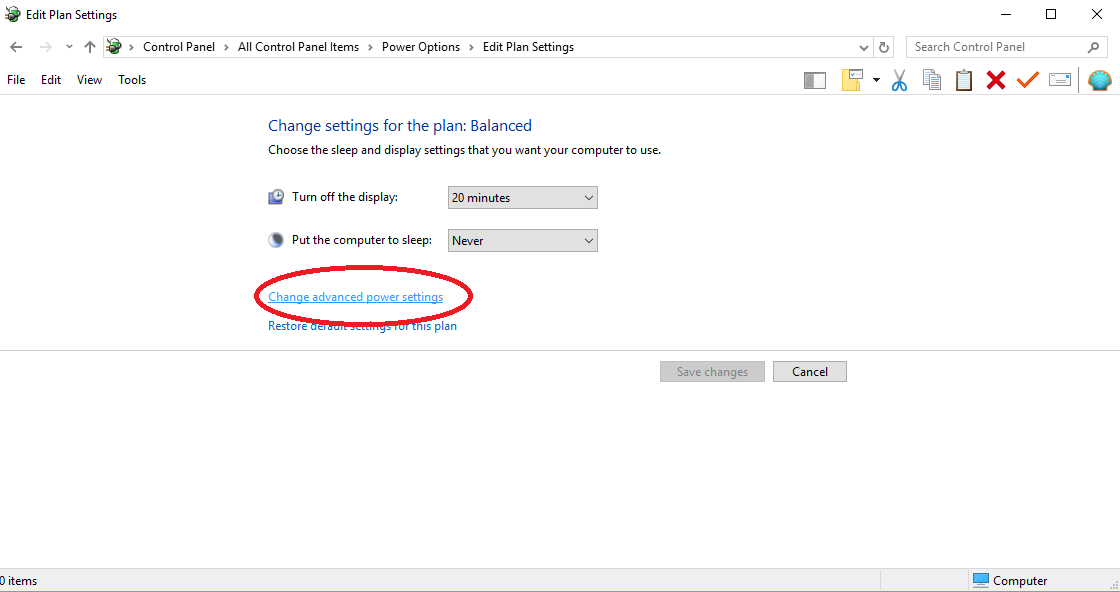
Now, click on “Change Advanced Power Settings”
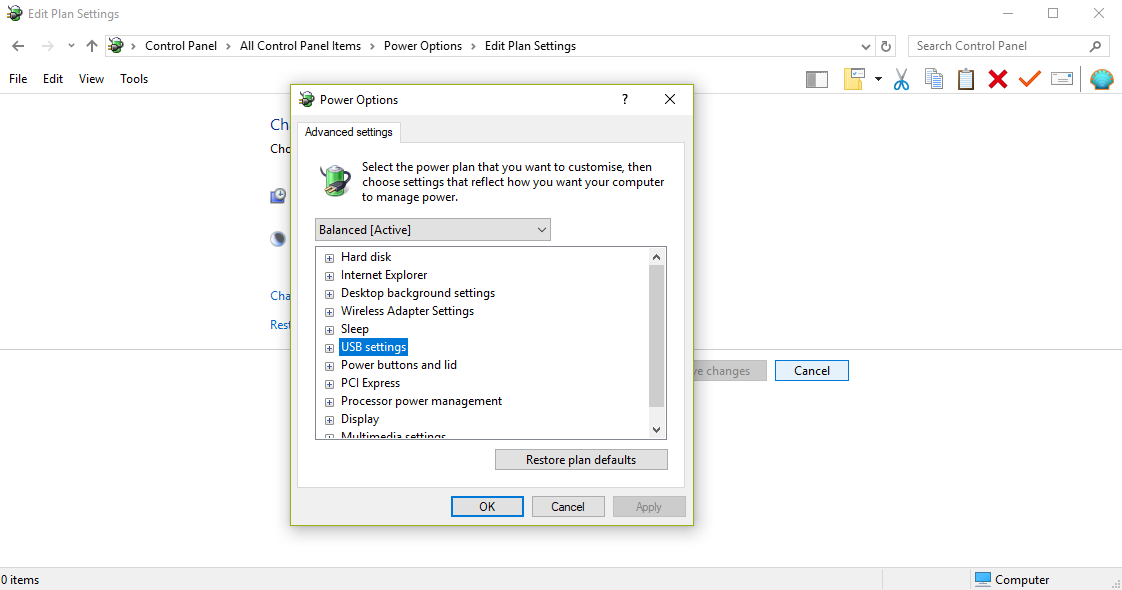
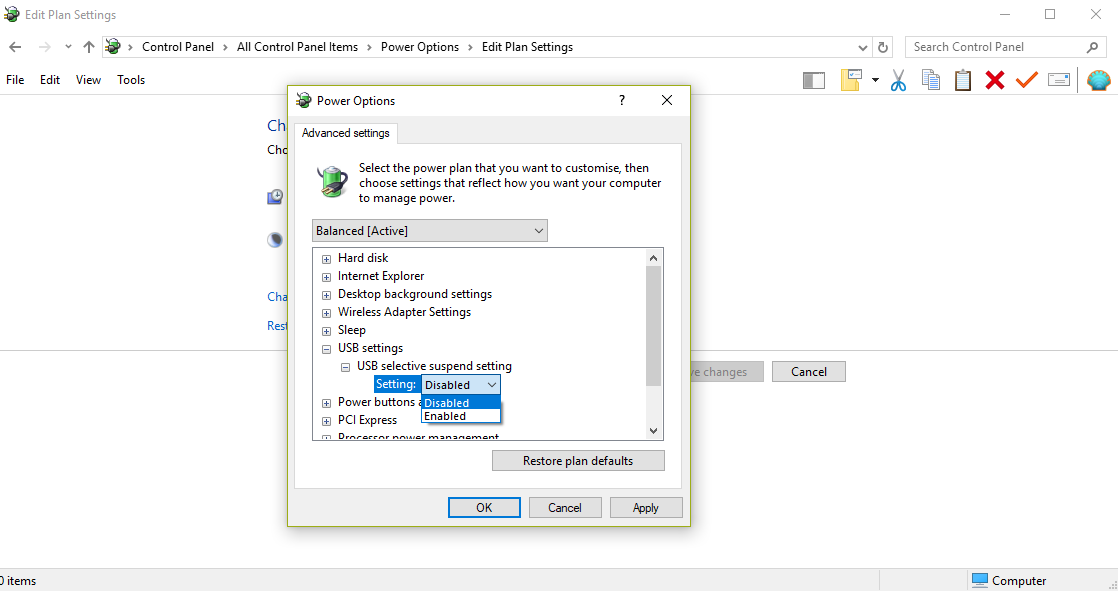
Locate “USB settings” and double click to open and then open “USB Selective suspend setting” and change it from “Enabled” to “Disabled” and than click “Apply” and “Ok”

Step Two
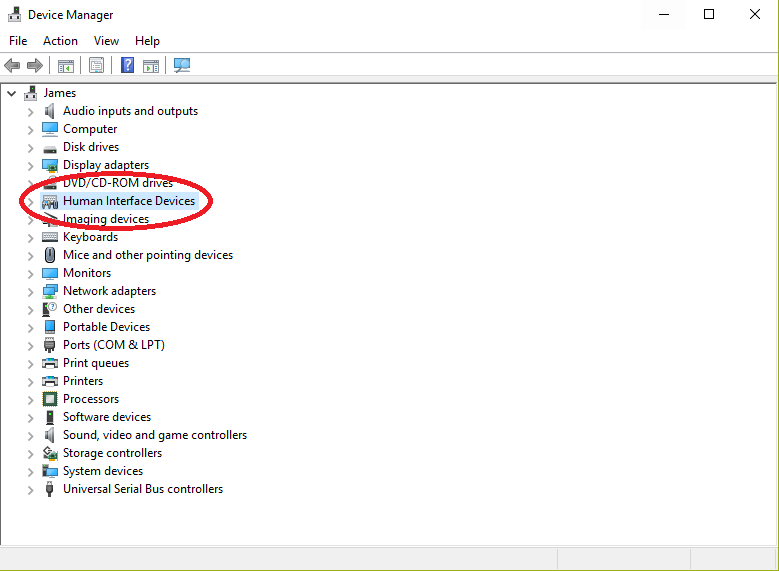
Exit “Edit Plan Settings” and click on the start button and type “Device Manager”. Open Device Manager and locate “Human Interface Devices”, open it.
Right click on each device shown and click “Properties” and for each one click on the tab titled “Power Management”
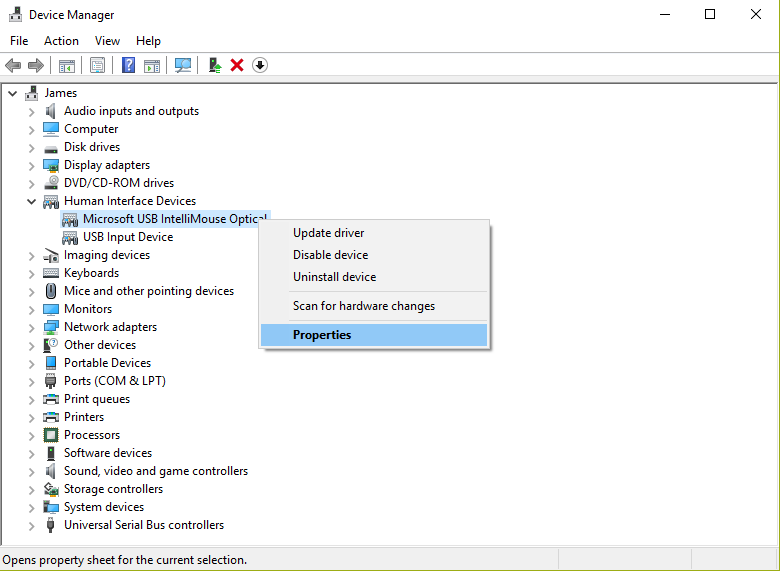
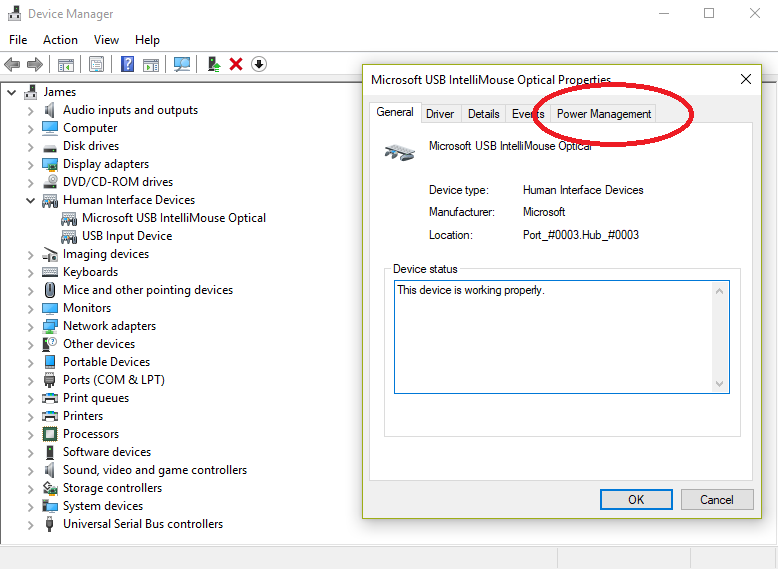
Uncheck the box next to “Allow the computer to turn off this device…” and hit the “Ok” button. Repeat this step for each listed device under “Human Interface Devices”
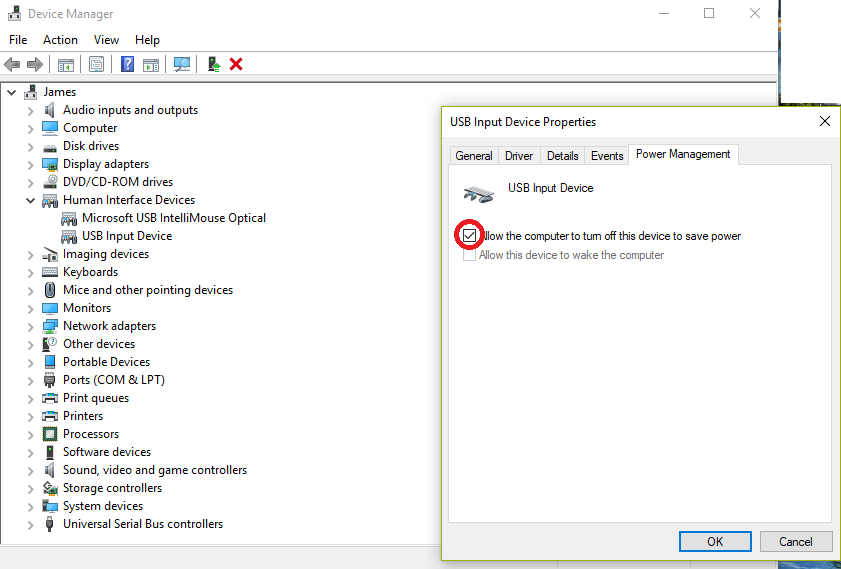

The issue should now be resolved and your keyboard, mouse and other devices should no longer stop functioning at random times.
If you are still experiencing issues than you can get support from Microsoft by clicking on “Start” and typing “Get Help”.


 4TheRecord